


What Should You Do if the Mobile Phone Can't Find the Logger WiFi?
Step 1: Enable Bluetooth and WiFi
- To use the BLE configuration, ensure Bluetooth pairing is enabled in the Cam Settings page.
- Then, connect to the Dash Cam WiFi hotspot through the App.
Step 2: Switch to 2.4G WiFi
- If your phone doesn't support 5G WiFi, switch the Dash Cam's WiFi to 2.4G.
- Go to Cam Settings > Connect your phone > WiFi Switch, and select 2.4G WiFi.
- Make sure the Cam WiFi is turned on.
Step 3: Check System Permissions
- Ensure that location, connection, WiFi, and other system permissions are granted for the App to function properly.
Note: If the issue persists after following the above steps, consider restarting your phone or the Dash Cam and try again.
If you need further assistance, please reach out to our support team at service@botslab.com.
Why Does the Wi-Fi Connection Indicate No Internet?
Understanding the Dash Cam's Wi-Fi
The Dash Cam’s Wi-Fi is designed to transmit video data to your phone or other connected devices. It is not a full internet connection. Therefore, it is normal for your phone to display "No Internet" when connected to the Dash Cam’s Wi-Fi.
Note: This is not an issue and will not affect your ability to use the Dash Cam for video transmission and monitoring.
If you have further questions, feel free to contact our support team at service@botslab.com.
How to Set Up the Dash Cam Features
-
Recording Audio
Enable/Disable audio recording in videos.
-
Speaker Volume
Turn the sound on/off and adjust the volume level.
-
Parking Monitor Sensitivity
Enable/Disable the parking monitoring feature and select the sensitivity level.
-
Constant Power Protection for Vehicles
Enable/Disable entering parking monitoring mode when connected to constant power.
-
Emergency Recording Sensitivity
Enable/Disable the emergency video feature and adjust the sensitivity.
-
Fatigue Driving Alert
Enable/Disable fatigue driving alerts.
-
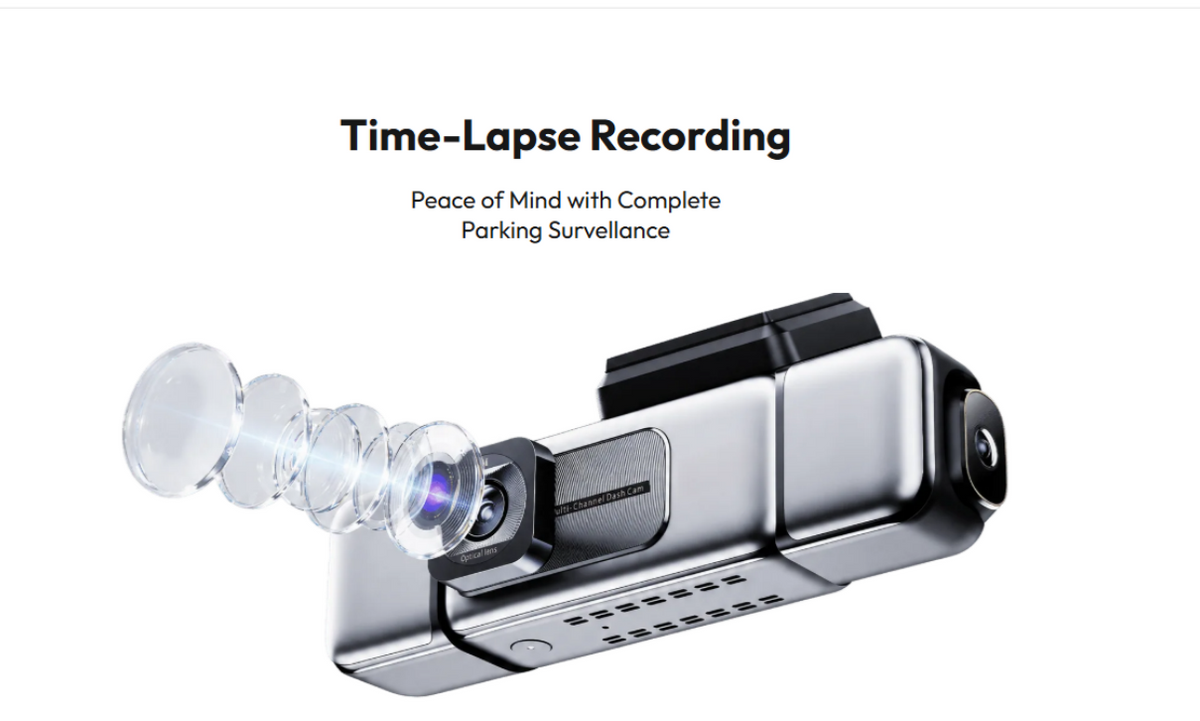
Timelapse Recording
Enable/Disable timelapse recording and select the operational duration.
-
WiFi Connection Password
Set the WiFi connection password.
-
Dashcam System Update
Check for locally downloaded firmware updates.
-
Format TF Card
Format the TF card; back up important video and photo files beforehand.
-
Factory Reset
Restore the factory default settings.
Note: Always ensure that any important files are backed up before performing tasks like formatting the TF card or resetting the device.
If you have any questions or need assistance, feel free to contact our support team at service@botslab.com.
How Does the Parking Monitoring Feature Work?
Parking Monitoring Mode
After the vehicle is turned off, the dashcam enters parking monitoring mode. If a collision occurs during this period, the dashcam will automatically start recording a one-minute parking surveillance video upon detecting vibration.
Constant Power Parking Monitoring
This feature allows the dashcam to remain powered on, even when the vehicle is off. If no vibration is detected for more than 10 minutes, the dashcam enters parking monitoring mode. Upon vibration detection, it starts recording a one-minute video and re-enters the monitoring mode.
If disabled, the dashcam will continue recording loop videos as long as the device is powered on.
This feature is especially useful for vehicles where the lighter socket remains powered after the engine is off, providing continuous power to the dashcam. It’s important to note that lighter sockets without low voltage protection may drain the vehicle’s battery.
Note: Ensure that the vehicle’s lighter socket is equipped with low voltage protection to prevent the vehicle’s battery from draining.








Share:
Botslab W314: Installation, Binding Troubleshooting & Data Plan Guide